Getting started
Using a smartphone or tablet
You can browse and download titles free of charge at any time from any location using the free app. Download and install the app from:
Open the PressReader app and select 'Sign in'. Select the 'Library & Groups' icon, enter 'Bracknell' as your library service and enter your library card number and PIN.
When entering your library card number, start with 597 or 800. Ignore the first three digits (which are 633).
A new user box will open up. To create an account, enter your details and select done. You can now set your favourite publications and topics to create a personalised news feed and save and share articles.
If you do not wish to create an account, select the X at the top of the screen.
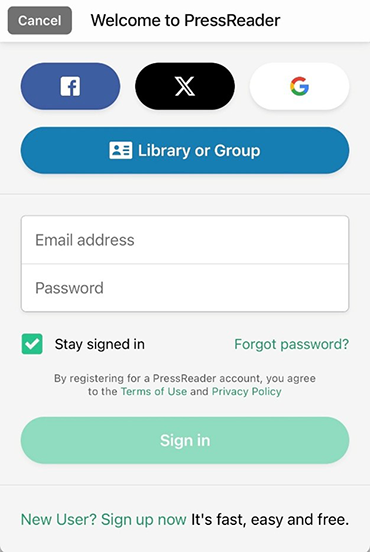
If you did not create an account, it will look like you haven't signed in. However, your 30 days access to PressReader will be active.
If you can see a green coffee cup when you select ‘Browse’ it means you are signed into the app
If it continues to ask you to pay for PressReader or pay for a Premium account, activate hotspots. You can do this by going to the menu at the bottom of the screen and selecting 'HotSpots', then 'Enable Hotspots'.
To login again after your 30-day period has expired, tap the ‘Browse’ button and select a title you have not already downloaded. This will take you to the library sign in page. Enter your library card and PIN again.
Once you have signed in successfully, you will be able to see a green coffee cup when you select ‘Browse’.
Access using library wifi
You can also use the library wifi to access the PressReader app without logging in with your library card number.
Log your device into GovWifi and open the app. You will have automatic free access for 3 days to download titles to your device or stream content online when you have an internet connection, even after you leave the library hotspot.
Using a computer
To use PressReader on your computer visit the PressReader website.
Select 'Sign In' and select the ‘Library or Group’ button. Enter 'Bracknell' as your library service and enter your library card number and PIN.
When entering your library card number, start with 597 or 800. Ignore the first three digits (which are 633).
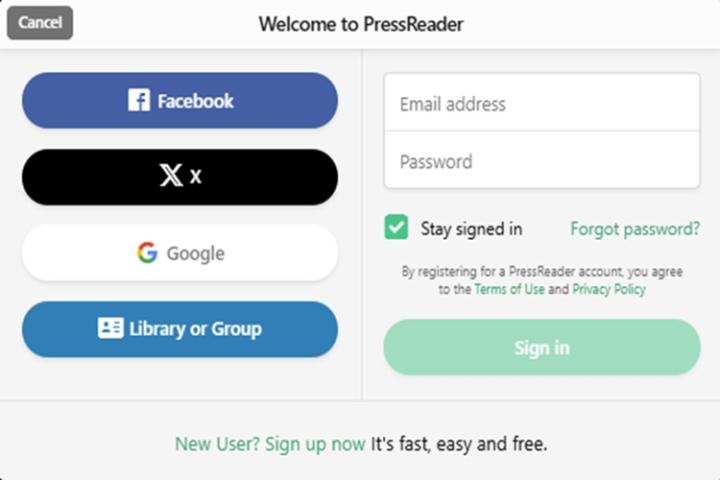
Titles can only be read online. It is not possible to download titles from the PressReader website to read offline, only using the app.
A pop up box and a green coffee cup will confirm you now have access to the site for 30 days. You can now read newspapers online in your web browser. After 30 days you will be prompted to sign in again using your library card number. Select the X in the top left corner of the screen to close the PressReader Hotspot window.
If you are asked to pay for PressReader, do not proceed. Go to your account and sign out, then sign back in by selecting your library name and entering your card number and PIN.
Personalisation
Once logged in you can personalise your account. You can set your favourite publications and topics to create a personalised news feed. You can also save and share articles.
Choosing and reading a publication
Using a smartphone or tablet
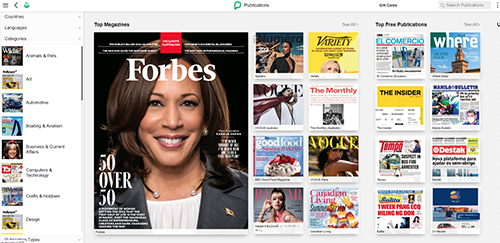
Search for a specific title or select a category, country or language to browse the available titles. Select the cover of a publication to open it. The publication will then open and download to your device.
Swipe your finger towards the left to turn the page. Spread two fingers on the screen to zoom in for closer reading.
Select the text view button for an easier layout for reading and scrolling rather than reading in page/print layout.
You can do this by:
- tapping on the title of the article
- tapping anywhere on the screen to bring up the settings bar (at the bottom of the screen) and selecting the text view button
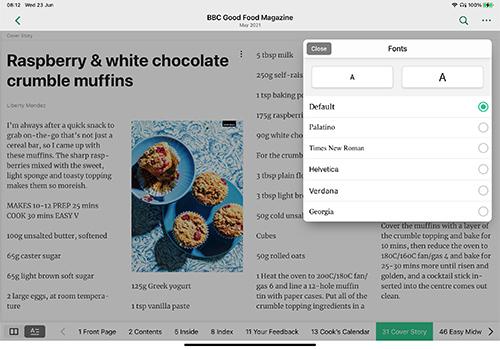
To increase the size of text, tap on the 'AA' button in text view to increase (or decrease) the size of the text. You can also change the brightness (good for reading outside in direct light).
To close the publication, tap on the screen and then the back button. You can then select 'Browse' to choose another title or 'Downloaded' to read one you have already checked out.
To listen to an article or get it translated, tap on an article title to open it. Next, tap on the 3 horizontal dots and select 'Listen' or ‘Translate’. The translate and listen facility may not be available on some devices or publications.
Removing a publication
Downloaded publications are saved on your device until you delete them. They can be retrieved from the 'Downloaded' button from the main menu bar.
Tap on a cover and then select the rubbish bin button to delete a publication.
Using a computer
Search for a specific title or select a category, country or language to browse the available publications. Select the cover to open it.
Click down with the mouse and pull across the screen to the left to scroll through the publication.
Clicking on the page will zoom you in. Click down and drag the page to move around.
For an easier layout for reading and navigating click on the title of the article to open it in text view. Hold the Ctrl key and + key on your keyboard to increase the text size.
To listen to articles or get articles translated, click on an article title to open it. You then select the three vertical dots and then choose ‘Listen’ or 'Translate'. The translate and listen facility may not be available on some devices or publications.
Select the printer button to print individual pages or selected areas.